Apple Logo

Apple Recent Questions, Troubleshooting Help & Support

Do you work here? Claim your company

  • 3K Products
  • 213K Answers
  • 4M Views
0helpful
1answer

How do unlock my Apple iPad forgot passcode

Official Response: How to Unlock Apple iPad If You Have Forgotten the Passcode

Option 1 - Using a Computer (Mac or PC) via Recovery Mode Step Action Instructions 1 Prepare Your Computer Ensure that you have the latest version of iTunes (on Windows or macOS Mojave and earlier) or Finder (on macOS Catalina and later) installed on your computer. Verify that the computer is connected to the internet. 2 Power Off the iPad Press and hold the Power button (top or side) until the "slide to power off" slider appears. Drag the slider to turn the device off completely. If the iPad is unresponsive, proceed to the next step directly. 3 Enter Recovery Mode Connect your iPad to the computer using a USB cable. While keeping the iPad connected, press and hold the appropriate button combination for your iPad model: • iPad with Face ID: Press and release Volume Up, press and release Volume Down, then press and hold the Top button until the recovery mode screen appears. • iPad with Home button: Press and hold the Home button and the Top (or Side) button simultaneously until the recovery mode screen appears. 4 Computer Detection Your computer will display a dialog box stating that it has detected an iPad in recovery mode and that it must be restored before use. 5 Initiate Restoration On your computer, click the "Restore" button. This will download the latest iOS/iPadOS software for your device and install it. 6 Confirm Action If prompted, confirm that you wish to erase the device and restore it to factory settings. This process will take several minutes. Do not disconnect the iPad during this procedure. 7 Completion Once the restoration is complete, the iPad will restart and display the "Hello" screen. You may now set it up as a new device or restore your data from a backup. Option 2 - Using Find My (iCloud) - No Computer Required Step Action Instructions 1 Access iCloud On any other device (computer, smartphone, or tablet), open a web browser and navigate to icloud.com/find or use the Find My app on another Apple device. 2 Log In Sign in using your Apple ID and password - the same credentials that are associated with the locked iPad. 3 Select Your iPad From the list of devices, select your locked iPad. 4 Erase iPad Click or tap the "Erase iPad" option. This will remotely erase all data and the passcode from the device. 5 Confirmation Confirm the action when prompted. The iPad will be wiped remotely once it connects to the internet. 6 Completion After the erasure is complete, the iPad will restart and display the "Hello" screen. You may now set it up as a new device or restore your data from a backup.

Important Official Notes

Topic Official Recommendation / Warning Data Loss Both methods will permanently erase all data stored on the iPad, including photos, contacts, messages, and apps. This is unavoidable if the passcode is forgotten. Backup Availability If you have previously backed up your iPad to iCloud or your computer, you will be able to restore your data after the device is unlocked. If no backup exists, all data will be irretrievably lost. Activation Lock After erasing the device, you will need to enter your Apple ID and password to disable Activation Lock and complete the setup process. This is an anti-theft security measure. Find My Requirement Option 2 (using Find My) only works if "Find My iPad" was enabled on the device before it became locked. If it was not enabled, you must use Option 1 (Recovery Mode). Internet Connection Option 2 requires that your iPad is connected to Wi-Fi or a cellular network. Option 1 (Recovery Mode) does not require an internet connection on the iPad itself, but the computer must be online to download the software. Third-Party Software We strongly advise against using unauthorised third-party unlocking tools, as they may compromise device security, void your warranty, or introduce malware.
7/30/2026 6:01:40 PM • Apple Tablets &... • Answered on Jul 30, 2026
0helpful
1answer

Please can you advise how to instal Face book on Apple IPad with shared Facebook account on my IPhone 6SPlus?

Official Response: How to Install Facebook on iPad Using the Same Account as iPhone 6S Plus

Step Action Instructions 1 Device Preparation Ensure that your iPad is connected to a stable Wi-Fi or cellular network and has sufficient battery charge (at least 20%) before proceeding. 2 Access App Store On the iPad home screen, locate and tap the App Store icon to launch the application. 3 Search for Facebook Tap the search bar at the bottom of the screen, type "Facebook", and tap the search key on the on-screen keyboard. 4 Download the App Locate the official Facebook application (published by Meta Platforms, Inc.) and tap the "Get" button next to it. If prompted, authenticate using your Apple ID password, Face ID, or Touch ID to initiate the download. 5 Installation Completion Wait for the application to finish downloading and installing. The Facebook icon will appear on your iPad home screen once the process is complete. 6 Launch the Application Tap the Facebook icon on your iPad home screen to open the app. 7 Select Login Option On the welcome screen, tap the "Log In" button. Do not select "Create New Account" unless you wish to set up a separate profile. 8 Enter Credentials In the designated fields, enter the same email address or phone number and the same password that you currently use to log in to Facebook on your iPhone 6S Plus. 9 Two-Factor Authentication (if applicable) If your account has two-factor authentication enabled, a verification code will be sent to your iPhone 6S Plus via SMS or the Facebook authentication app. Enter this code on your iPad when prompted. 10 Complete Login Tap the "Log In" or "Continue" button to finalise the authentication process. 11 Synchronisation Confirmation Upon successful login, your Facebook account data - including your profile information, friend list, news feed, and messaging history - will be automatically synchronised across your iPad and iPhone 6S Plus. No manual data transfer is required. 12 Post-Installation Verification To confirm that the correct account is active, navigate to the menu (three horizontal lines) and verify that your profile name and photo match those on your iPhone 6S Plus.

Additional Official Notes

Topic Official Recommendation Multiple Accounts If you have more than one Facebook account, please ensure you log out of any other session on the iPad before entering your primary credentials. Forgotten Password If you cannot recall your password, tap "Forgot Password?" on the login screen and follow the secure recovery procedure. App Version The Facebook application for iPad is a universal app that automatically optimises its interface for larger screens. No separate "iPad version" is required. Data Privacy Your login credentials are encrypted and stored securely on the device. Facebook does not share your account data between devices without your explicit consent. Troubleshooting If the login fails, please verify that your iPad is connected to the internet, that you are entering the correct credentials, and that your iPhone 6S Plus is accessible to receive any two-factor authentication codes.
7/30/2026 6:00:10 PM • Apple Tablets &... • Answered on Jul 30, 2026
0helpful
1answer

I have a iPad Pro 12.9 with a cracked screen

In response to your question regarding the cracked screen on your iPad Pro 12.9", please consider the following official assessment: 1. If the display still functions normally (touch response and image quality are unaffected, with only the outer glass cracked), the device still requires a full display assembly replacement. The glass cannot be separated from the LCD due to the laminated construction. 2. If the display shows black spots, discoloration, flickering, or if the touchscreen is unresponsive, this indicates damage to the underlying LCD panel as well. In such cases, a full display replacement is unequivocally required, and there is no alternative repair option. In either scenario, the recommended course of action is the same: a complete screen replacement carried out by an authorized technician. Please note that any unauthorized third-party glass-only repair will void any remaining warranty and may compromise the structural integrity of the device.
7/30/2026 5:58:05 PM • Apple iPad... • Answered on Jul 30, 2026
0helpful
1answer

Iphone 3g stuck on apple logo after jailbreak

"Dear User, We have received your report regarding the iPhone 3G (jailbroken) that remains unresponsive, displaying only the Apple logo after a reboot. We sincerely appreciate your concern regarding the preservation of your contacts and photographs. Please be advised that the boot loop you are experiencing is a known issue following jailbreak attempts on iOS 4.2.1. The recommended course of action, which carries minimal risk to your data, is as follows:
  1. Place the device into DFU mode by connecting it to a computer, pressing Power + Home for 10 seconds, then releasing Power while holding Home for another 10 seconds.
  2. Launch redsn0w and navigate to Extras ? Recovery Fix. This function is specifically intended to force the device out of the recovery/boot loop state without erasing the user data partition.
  3. If the device successfully boots, please create an immediate backup via iTunes or iCloud to secure your data.
Should the Recovery Fix fail, we must inform you that the only guaranteed method to restore functionality is a full restore through iTunes, which will unfortunately result in complete data loss. We therefore advise that, prior to any restore, you attempt data extraction using reputable third-party forensic recovery tools that support DFU mode. Please also verify that the device has sufficient battery charge, as the low-battery indicator you observed may have caused the boot process to terminate prematurely."
7/30/2026 5:54:11 PM • Apple iPhone 3G • Answered on Jul 30, 2026
0helpful
3answers

Apple iPhone screen repair and also why My screen turned on fine and then slowly goes dark have to shut it back off and start over

There should be many resaons behind this cause, because we don't know the history of the device. For example, it may have been water damaged in the past, or suffered various falls and impacts. It may also have been repaired. So i suggest you to visit the near by authorized Apple Repair Center to get it fixed. If you are able to fix it by the repair kit at your home then it will be also the second best option.
7/25/2026 2:40:49 PM • Apple Cell... • Answered on Jul 25, 2026
0helpful
3answers

Factory reset iPad air forgot password to my new iPad and it says my ipad is disabled..I have held the buttons several times

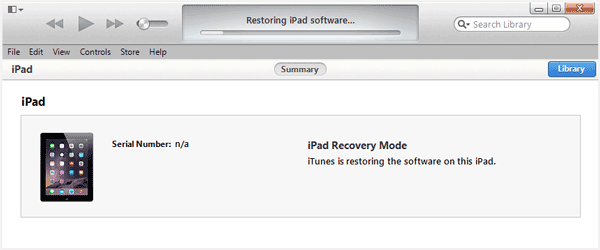
when your iPad says "iPad is disabled", holding buttons alone won't unlock it. You have to put it into Recovery Mode and restore it with a computer. I'll walk you through it clearly:Step 1: Turn off the iPadStep 2: Enter Recovery Mode (this is the key part)(You can use TunesKit iOS System Recovery to do with one click)Step 3: Restore using a computerYou'll see a message:"There is a problem with the iPad..."Click Restore (NOT Update).You can also use TunesKit iPhone Unlocker to fix a disabled iPad Air. It basically does the same thing as Recovery Mode, but with a simpler guided interface.Use the "Unlock iOS Screen" feature.
7/23/2026 4:48:07 AM • Apple iPad... • Answered on Jul 23, 2026
0helpful
2answers

I have iPad two and cannot get it to swipe open it said change passcode I did and now I can't get in it

It sounds like your iPad 2 is stuck on the lock screen after a passcode change-this happens more often than you'd think. Unfortunately, if the passcode isn't accepted, there's no way to "force" it open without erasing the device. Here's what you can do: If you're still locked out: Use Recovery Mode Turn off your iPad. Connect it to a computer while holding the Home button. Keep holding until you see the recovery mode screen (cable + computer icon). When prompted, choose Restore (not Update). This will erase the iPad, remove the passcode, and install the latest supported iOS for iPad 2. Apart from it, you can also use TunesKit iPhone Unlocker to unlock your iPad without any complicate steps. You will be guided to unlock your iPad in the whole process.
7/23/2026 4:46:25 AM • Apple iPad... • Answered on Jul 23, 2026
0helpful
5answers

How do you unlock the Activation Lock on an ipad when you don't know required Apple id or Password

Your apple ID is normally your email and use the FORGOT PASSWORD line they will send a reset to your backup number or email address
7/23/2026 4:42:08 AM • Apple Tablets &... • Answered on Jul 23, 2026
0helpful
3answers

Download mods for minecraft

Installing mods is a really hard thing on a ipad, you will need to jail break so im suggesting to look it up on youtube
7/23/2026 4:40:29 AM • Apple iPad... • Answered on Jul 23, 2026
0helpful
3answers

Hi there I bought a apple iPad online it's locked How do I get it unlocked and reset it to factory setting

If the iPad you bought is locked, the solution depends on what kind of lock it has. The two most common are:
  1. Screen passcode lock (you can't get past the lock screen)
  2. Activation Lock (it asks for someone else's Apple ID after reset)
These are very different situations, so here's how to handle each one. 1. If It's a Screen Passcode Lock (You can reset it) This is the easier case. You can erase the iPad and set it up as new. Option A: Use Finder or iTunes (official method) Step 1: Turn off the iPad Step 2: Connect it to a computer Step 3: Put it into Recovery Mode For most iPads (no Home button): hold Top button + Volume button ? power off, then hold Top button while connecting For older iPads (with Home button): hold Home button while connecting Step 4: When prompted on your computer, choose Restore Step 5: Wait for the process to finish After that, the iPad will reset to factory settings. Option B: Use Third-party Tool like TunesKit iPhone Unlocker In addition to Apple's official method, you can also use a dedicated unlocking tool like TunesKit iPhone Unlocker to simplify the process. TunesKit iPhone Unlocker is designed to remove screen locks from iOS devices, including 4-digit/6-digit passcodes, Face ID, and Touch ID. Once the lock is removed, the device can be set up as new. TunesKit iPhone Unlocker can also remove Activation Lock from iPhone without Apple Account password. Step 1: Download and install TunesKit iPhone Unlocker on your computer and launch it. Step 2: Connect your iPad using a USB cable. Step 3: Select the Unlock iOS Screen mode. Step 4: Put your device into Recovery Mode or DFU Mode as instructed. Step 5: Download the required firmware package. Step 6: Click Unlock to remove the screen passcode. 8g5savaaaabkleqvqdapyt2vcoh7zdaaaaaelftksuqmcc 2. If It Shows "Activation Lock" Option A: Contact the seller (best solution) Ask them to remove the device from their account via: iCloud ? Find My ? Remove device Option B: Use Third-party Tool like TunesKit iPhone Unlocker (Apple Accoun No required) TunesKit iPhone Unlocker can also remove Activation Lock from iPhone without Apple Account password.
7/23/2026 4:36:45 AM • Apple Tablets &... • Answered on Jul 23, 2026
0helpful
3answers

How do you connect the iPad to iTunes when it won't turn on?

You can try these: 1. Force Restart iPad: Hold the Home button and Wake button at the same time for about 10 seconds. Your find your device vibrating and get out of the iPhone boot loop. 2. Try an iPhone system recovery software If your iPad cannot be force restarted, TunesKit iOS System Recovery is a wildly accepted tool to make your iPad back to normal with almost every problem solved.
7/23/2026 4:35:34 AM • Apple iPad (16... • Answered on Jul 23, 2026
0helpful
3answers

Help me to unlock my ipad I know apple id but I can't remember the password

WHEN YOU GO TO SIGN ENTER INTO FORGOTTEN PASSWORD AND SIMPLY CHANGE PASSWORD BY ENTERING NEW PASSWORD
7/23/2026 4:34:39 AM • Apple Tablets &... • Answered on Jul 23, 2026
0helpful
3answers

How do I unlock my ipad activation lock without i-tunes. I forgot my password and apple I'd.

If you bought a second-hand iPhone/iPad stuck on the activation lock screen and don't know the previously used Apple ID and password, iMyFone iBypasser can help you activate iPhone/iPad without Apple ID. This excellent tool came out in 2020 and has helped many users who reset their own iPads without logging out the previously used Apple ID.
7/23/2026 4:33:38 AM • Apple Tablets &... • Answered on Jul 23, 2026
0helpful
3answers

Older apple iPad how to unlock screen

Connect it to a computer with iTunes on it and do a factory reset. That scrubs it clean and you can start fresh. There is no way to get in otherwise.
7/23/2026 4:32:16 AM • Apple Tablets &... • Answered on Jul 23, 2026
0helpful
3answers

Password screen frozen on iPad how do I reset

In your case, you can still try some methods to fix it. Just follow below steps. If you've neither synced with iTunes nor set up Find My iPhone in iCloud, you'll need to wipe your iPad to factory setting to remove the password, which means you'll suffer losing all your data on iPad and get it as a new one. Please pay attention there is a slight difference in putting different models of iPad into recovery mode. iPad Air
  • 1. Turn off your iPad Air, press and hold the Home button.
  • 2. While holding the Home key, connect the USB cable to the device. Wait until the Apple logo appears and keep holding the Home button for few more seconds.
  • 3. Continue holding the Home button until the iTunes logo appears.
iPad mini/iPad pro
  • 1. Connect your iPad to your computer or laptop and open iTunes.
  • 2. While your device is connected, force to restart it.
  • 3. Press and hold the Sleep/Wake and Home buttons at the same time. Don't release when you see the Apple logo. Keep holding both buttons until you see the recovery mode screen.
Now you have entered the recovery mode, and 1. When you see the option to Restore and Update, click it. 2. Wait for the process to finish. Then you can set up and use your device. For more methods, check: How to Unlock iPad?
7/23/2026 4:31:01 AM • Apple iPad... • Answered on Jul 23, 2026
0helpful
4answers

I pad locked due to security reasons need to unlock

    Tap Home to continue using your iPad. Double-tap the Home key when you are ready to unlock the screenorientation. Slide the Multitasking menu to the left to view the orientation lock icon. Tap the orientation lock icon.
https://www.google.com/url?sa=t&rct=j&q=&esrc=s&source=web&cd=3&sqi=2&ved=0ahUKEwj8kKrO9MDKAhVLFz4KHXHVDlsQFgglMAI&url=http%3A%2F%2Fsmallbusiness.chron.com%2Flock-unlock-ipads-screen-orientation-29741.html&usg=AFQjCNHISHgQU0IfMDbwuYogD-WwNXE68A&sig2=hcc-kxq0KKktOq35SE_YEw&bvm=bv.112454388,d.cWw
7/23/2026 4:28:51 AM • Apple iPad Mini • Answered on Jul 23, 2026
0helpful
1answer

I am trying to sync my Q7 smartwatch to my apple phone - I get to the part that says to press the "i" button but where is that?

Here is a great video that explains step by step how to sync your Q7 with your iPhone. - https://www.youtube.com/watch?v=O83g1KEO80Y I hope this response helps you out. I wish you the very best of luck! If I can help you further, please let me know. If I've assisted you, I'd greatly appreciate you taking the time to provide me with a favorable rating. Thanks so much!
5/23/2026 1:06:29 PM • Apple Cell... • Answered on May 23, 2026
0helpful
2answers

I forgot my passcode. Battery died. Now have one chance left. Iphone 5s

If you've forgotten the passcode on your iPhone 5s and only have one attempt left, it's important to proceed with caution. Entering the wrong passcode on the final try will disable the device, which means you won't be able to access it normally anymore. Unfortunately, for this model, there is no reliable way to unlock the device without erasing its data if the correct passcode cannot be recalled. If you're unsure about the correct passcode, the safest option is to put the device into recovery mode and restore it using a computer. To do this, connect your iPhone to a computer and open iTunes on Windows or older macOS, or Finder on newer macOS versions. Then, press and hold the Home and Power buttons together until the recovery mode screen appears. When prompted, choose the "Restore" option. This process will erase the device, remove the passcode, and reinstall the operating system. If you find you cannot use the iTunes method, you need to ask a professional tool for help like TunesKit iPhone Unlocker. The tool can help you unlock your iPhone 5s with a few clicks. liwdvaaaabkleqvqdaknwabuadj2waaaaaelftksuqmcc
4/23/2026 10:44:40 AM • Apple iPhone... • Answered on Apr 23, 2026
0helpful
2answers

IPhone touch screen freezes and stopped working

hold down the home and power button together, should reset the iPhone and stop this happening. (you will not lose any data)
4/23/2026 10:35:45 AM • Apple iPhone... • Answered on Apr 23, 2026
0helpful
2answers

My MacBook freezes at startup.

Have a look at this article on the apple website it may help you http://support.apple.com/kb/TS2570
4/21/2026 2:26:04 AM • Apple MacBook... • Answered on Apr 21, 2026
Not finding what you are looking for?

Ask a Question

Usually answered in minutes!

Popular Products

Apple iPod touch
Apple iPod touch

6,442 Questions

Apple iPod nano
Apple iPod nano

5,455 Questions

Apple iPhone 3G
Apple iPhone 3G

4,141 Questions

Top Apple Experts

Kolbrun...

Level 3 Expert

1229 Answers

ADMIN Andrew
ADMIN Andrew

Level 3 Expert

73794 Answers

Grand Canyon Tech
Grand Canyon Tech

Level 3 Expert

3869 Answers

Are you an Apple Expert? Answer questions, earn points and help others

Answer questions

Manuals & User Guides

Loading...